Common editing options
Who can do this:
- Anyone with editing permission for the relevant content, whether Forms, Messages, Challenges, Rewards, etc.
Content you create shares common editing options, most of which are accessed by buttons at the top of your list of items. They allow you to modify single items, and are especially useful for editing multiple items at once.

Action | Description |
|---|---|
Add | Create a new item. |
Re-assign | Change the visibility of one or more items by selecting different groups, teams, or tags. |
Make copy | Reuse an item you've previously created. |
Send message | Send a push notification, text, or email about a specific item. |
Create Challenge | Create a challenge based on a piece of content. |
Enable/Disable | Activate or expire one or more items. |
Remove | Permanently delete one or more items. |
CSV | Export the list to your computer in .csv format. |
Edit an item | Edit an existing item to make any changes. |
Archive/Unarchive | Archive older items to tidy your list before exporting a CSV. |
Most of these appear in your Focus Content, Media, News & Notices, Forms, Challenges, Sequences, Rewards Setup, Raves, and Marketplaces lists. You'll also see some of the same options when adding a new item or editing an item.
Add
The Add button appears at the top of an item list, by default, when no items are selected.

To add a content item, challenge, or reward, refer to the steps here:
Re-assign one or more items
Re-assign one or more items to select different groups, teams, or user and display tags.
To re-assign one or more items:
- In the list, select the checkboxes next to the item(s) you want to re-assign.
- At the top, click Re-Assign.
- A Re-Assign items window opens.
- Make your changes by selecting or de-selecting groups, teams or tags.
- In the bottom-right, click Re-Assign.
- A dialog appears, asking if you're sure you want to make the changes.
- If yes, click Re-Assign.
Curious about how groups, teams, and tags work?
Discover how user segmentation helps you manage content visibility. Find details at Segmentation & visibility.
Make a copy
Copy content you want to reuse and change a couple of the details, such as the timeframe or availability.
To do this:
- In the list, tick the item you want to copy.
- At the top, click Make copy.
- A window opens with a copy of the item.
- Make the changes you want, and select a saving option.
Alternatively, you can make a copy when you open up the individual item. See Edit an item, below.
Send message
Send a message to users via push notification, text message, or email. This option appears in your lists of Focus Content, Media, Challenges, and Form items. You could send a message about those items, or something else.
To send a message:
- In an item list, select tick the item you want to send a message about.
- At the top, click Send message.
- The Compose page opens.
- When you're ready, select Send message to all (4) users.
What are other ways to send a message?
You have a couple other options for sending a message:
- When saving a new item, simply choose Save and Send Message.
- Or, head to your user list, filter or select the users you want, and click Send Message.
Create a Challenge
Create a challenge based on a piece of content. The challenge adopts the same groups, teams, or tags you've assigned to your content item.
To create a challenge based on a content item:
- In the item list, select the checkbox of the item you want to use in the challenge.
- At the top of the list, select Create challenge.
- A New challenge setup window opens.
Alternatively, to create other types of challenges, such as one that is based on step tracking, see Create a Challenge.
How do I turn my content into a challenge?
Once you've created new content, just click Save and create challenge to launch the challenge setup.
Enable or disable an item
Manually re-activate or expire items using the Enable/Disable button. Doing this overrides the original begin and end dates, if outside the original timeframe.
To do this:
- In the item list, tick the item(s) you want to modify.
- At the top, select Enable or Disable.
- If you select Enable for multiple items, as long as there is one disabled item, it will be enabled.
- Alternatively, to disable and enable individual Content and Engagement items:
- In the far-right column, toggle the Enable/Disable button.
Download a list
Download a list to your computer by clicking the CSV button in the top-right corner of any item list.
Remove an item
Remove one or more items that you want to permanently and immediately delete. This overrides the end date you originally specified.
To remove one or more items:
- In the list, tick the item(s) you want to delete.
- At the top, click Remove.
- A dialog appears asking if you're sure you want to delete the item.
- If yes, click Delete.
- If your item was active, it will be removed and no longer appear in the list.
Is this permanent?
Yes. Once you've deleted a content item, it is removed permanently from the dashboard, and there is no way to re-activate it.
Edit an item
Open an existing item, to make edits to the original setup.
To do this:
- Go to your list and select an item.
- Make your edits.
- If the item is a challenge, first select the Setup tab, in the top-left corner. If the item is a form, first select the Edit Form tab.
- Select a saving option:
- Save and send a message: The Compose tab opens, where you enter the details of your message. See Send message.
- Save and create a challenge: A new window opens where you can set up your challenge. See Create a Challenge.
- Save and close: Your item is published according to the timeframe selected.
Archive items
Archive items when you want to move out items from your current list, for easier organization and exporting.
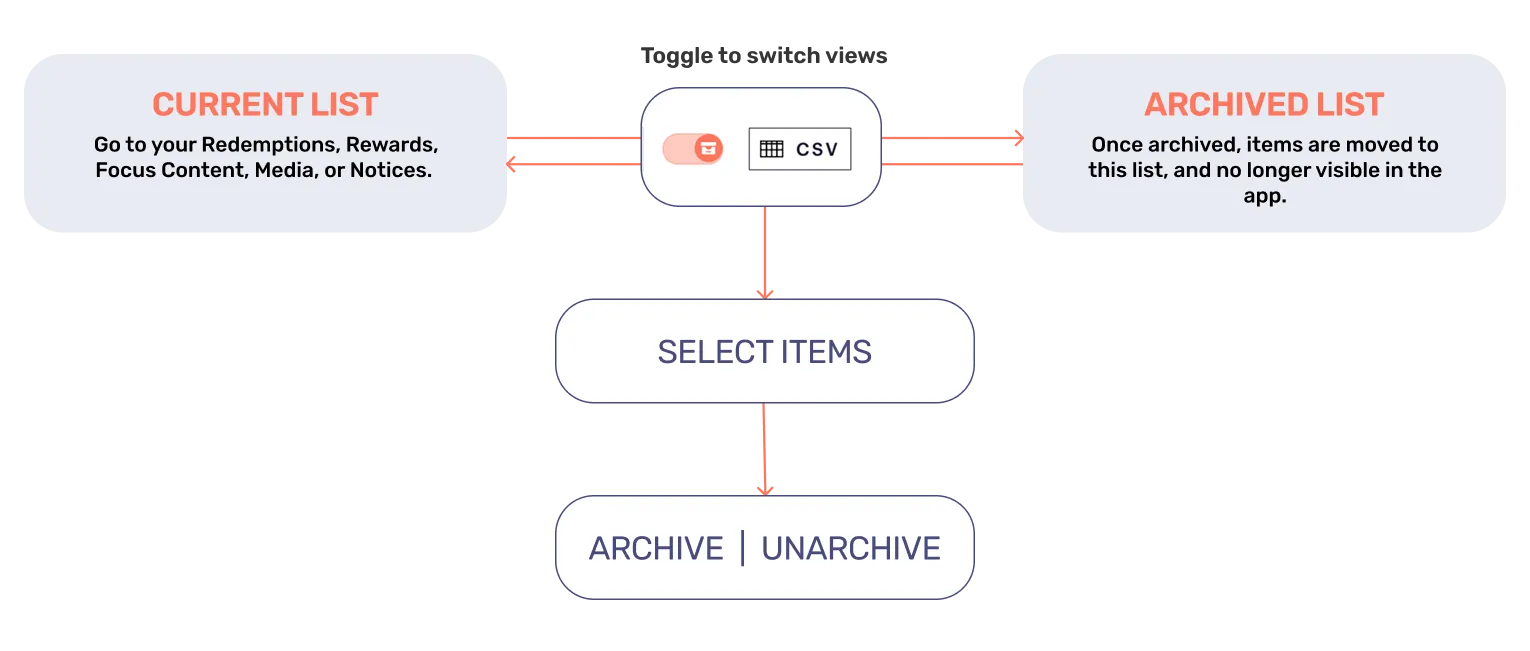
To archive/unarchive items:
- In the list, tick the item(s).
- If you're unarchiving, toggle to the archived list, in the top-right corner first.
- At the top of the list select Archive or Unarchive.
- The item(s) will either move to the archived list or return to your current list.
Use the toggle to switch between your current and archived lists.
What if I archive active content?
Archiving active content will remove it from the app.