Vary sections by user assignment
Who can do this:
- Anyone with editing permission for the Homescreen and HS sections
If you want to tailor part of your layout for specific users—based on their group, team, or tag assignment—use the Vary section by user assignment option.
This lets you create sets, which are alternate versions of a section that display only to users with matching assignments.
When to use sets
Use sets when most of your content remains the same, and only part of the layout's design needs to change. Note that:
- If you only have a few differences, you may not need sets—just place all content in a regular section and use content availability settings instead.
- If you want to offer a completely different experience, use separate layouts at the group or team level. This also allows admins to manage their own layouts. See Multiple layouts.
Can a user see more than one set in a section?
No. Users only see one set per section—either the default or one assigned by group, team, or tag. If using user tags, limit to one set per section to avoid conflicts (since users can have multiple tags).
Add sets
You can add one or more sets, whether by group, team, or tag.
2. Toggle on Section varies by assignment.
3. Choose a user assignment type: Group, Team, or Tag.
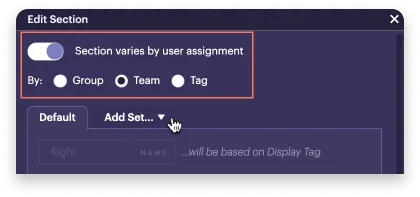
4. In the Add set dropdown, choose the group, team, or tag.
- The Set tab will display your selection, and another Add set tab will be available.
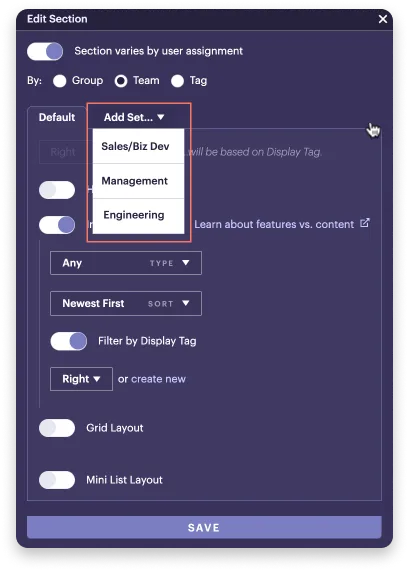
5. Repeat for each additional set you want to include.
Configure each set
For every set you add, configure its layout and style.
How should I use display tags when working with sets?
When creating multiple sets of a section, if including content, create a unique display tag for each set. See Use display tags to place content.
To configure each set:
2. Select the Default tab to choose the settings for the Default set:
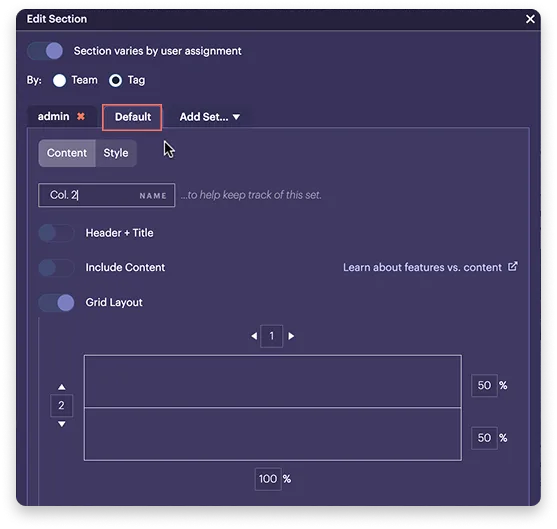
3. Repeat for each set.
4. Click Save when you're done.
What is the Default?
The Default is what users see who don’t belong to any of the sets you’ve defined. It is the baseline for the section. In a Group-level layout, it's what everyone in the Group sees, unless they belong to a set you create.
Design your sets
Once you've added sets, design each section variation as needed.
To design a set:
1. Open the layout editor and locate the section.
- At the bottom, you’ll see tabs for each set, including the Default.
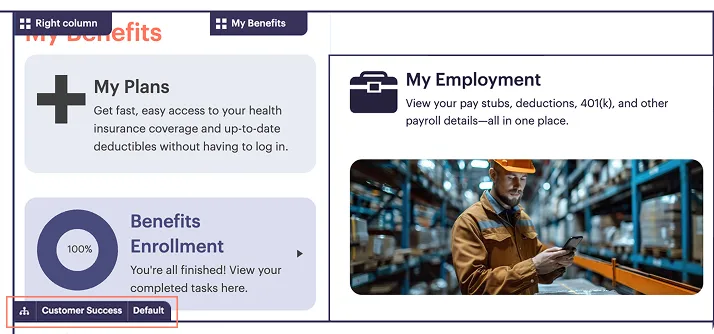
2. Select a tab to load the set.
3. Add content, features, and menus as you would in any other section.
4. Repeat for each set until your layout is complete.
View & manage sets in the layout editor
You’ll see an override count displayed at the bottom of the layout editor whenever you’ve selected one or more sets.
To view the baseline layout (Default) without any set-specific variations:
- Below the layout, next to the override count, click the x.
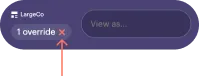
This resets the view to show the layout without any set-specific changes.
Not seeing content? It might still be there.
If you're using sets, the content may be in the layout but hidden from your current view. Content within sets only appear to users with matching assignments (such as a group, team, or tag). See Preview content as another user.