Use the content chooser
Who can do this:
- Anyone with editing permission for the Homescreen and HS Sections, if editing existing sections and creating Display tags
- Additional viewing permissions are needed for any content you want to place in the layout
The content chooser allows you to place existing content in the layout. Within each content type, items are listed newest first. If you have more than 50 items, navigation arrows let you to browse through each page.
Key info is indicated below.
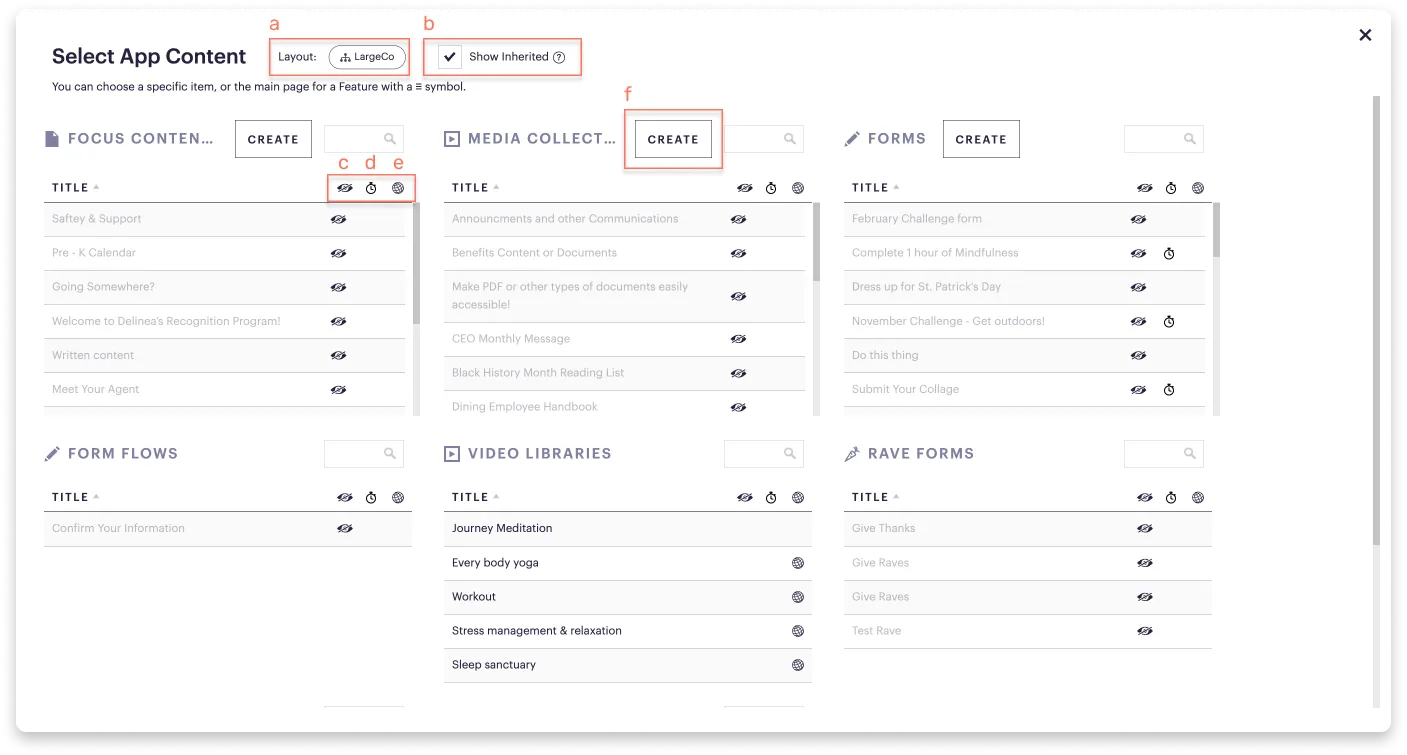
a. Hierarchy symbol: This is the layout you're adding content for.
b. Show inherited: Tick this checkbox to access content created above your admin level.
c. Visibility (eye) symbol: Indicates the item won't be visible in the app to you because you're previewing the app as a user who doesn't match the item's availability. To see it, in the View window, below the app preview, enter a user’s name to whom it's been made available.
d. Time symbol: Indicates the item won't be visible in the app because the item is scheduled to appear at a future date or has already expired.
e. Global symbol: Signifies the item comes from a higher admin level or is global content, so it’s managed outside your current admin access but is still available across different levels.
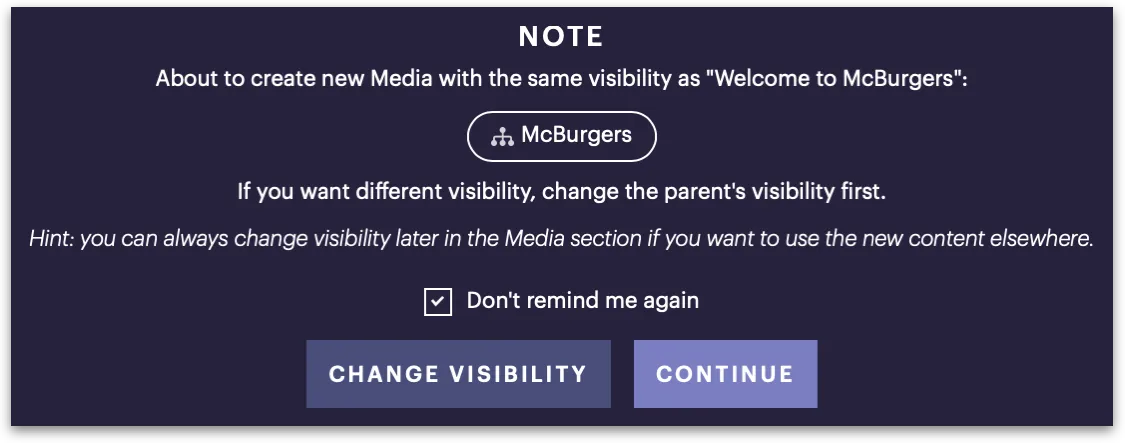
f. Create: Select this button to create content on the fly. In the dialog that appears, choose one:
- Continue: This keeps the visibility the same as your main piece.
- Change visibility: This lets you re-assign your main piece to a different group, team, or user tag.
Where else can I find the content chooser?
The content chooser also appears when you select Include link? and In-App for posts like News & Notices or Focus Content.