Use display tags to place content
Who can do this:
- Anyone with editing permissions for the Homescreen and HS sections
- Additionally, the Tags (editable) permission is required to edit tags
Follow the steps below to create and assign display tags to place content within different sections of a layout.
How do I ensure the display tag is available to use by lower-level admins?
If you want content to be shared between multiple layouts, create the tag as a top-level admin, so it's available to use by lower-level admins in their layouts.
Set up a display tag
Set up a display tag for the section or set where you want to place content blocks.
To do this:
1. In the layout, go to the section you want, and in the corner menu click the Gear icon.
- The section's settings opens.
2. Toggle on Include content.
3. In the Sort dropdown, select the order your want your content arranged:
- Newest first
- Oldest first
- Alphabetical
- Custom
4. Toggle on Filter by display tag and choose one:
- Select from: In the dropdown, choose an existing tag. Any display tags already created for this layout are available to select from, along with any created at the top admin level.
- Create new: Select this to enter a tag name, based on the section's Name.
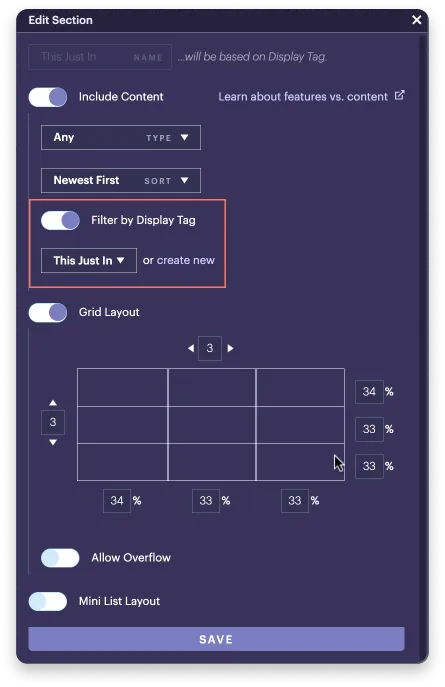
5. Click Save.
Continue to an option below to assign your content with this display tag, so it appears in that section.
Assign a display tag within the layout
When you place content in a section of the layout, it's automatically assigned the display tag you set for that section.
To place content:
1. In the section of the layout, where you want to place your content, select +Add.
2. Select Content.
- A dialog opens with options to choose existing content, create new content, or switch to a feature.
3. Select Choose existing.
- The content chooser window opens. To place content created above your level, at the top, tick Show inherited.
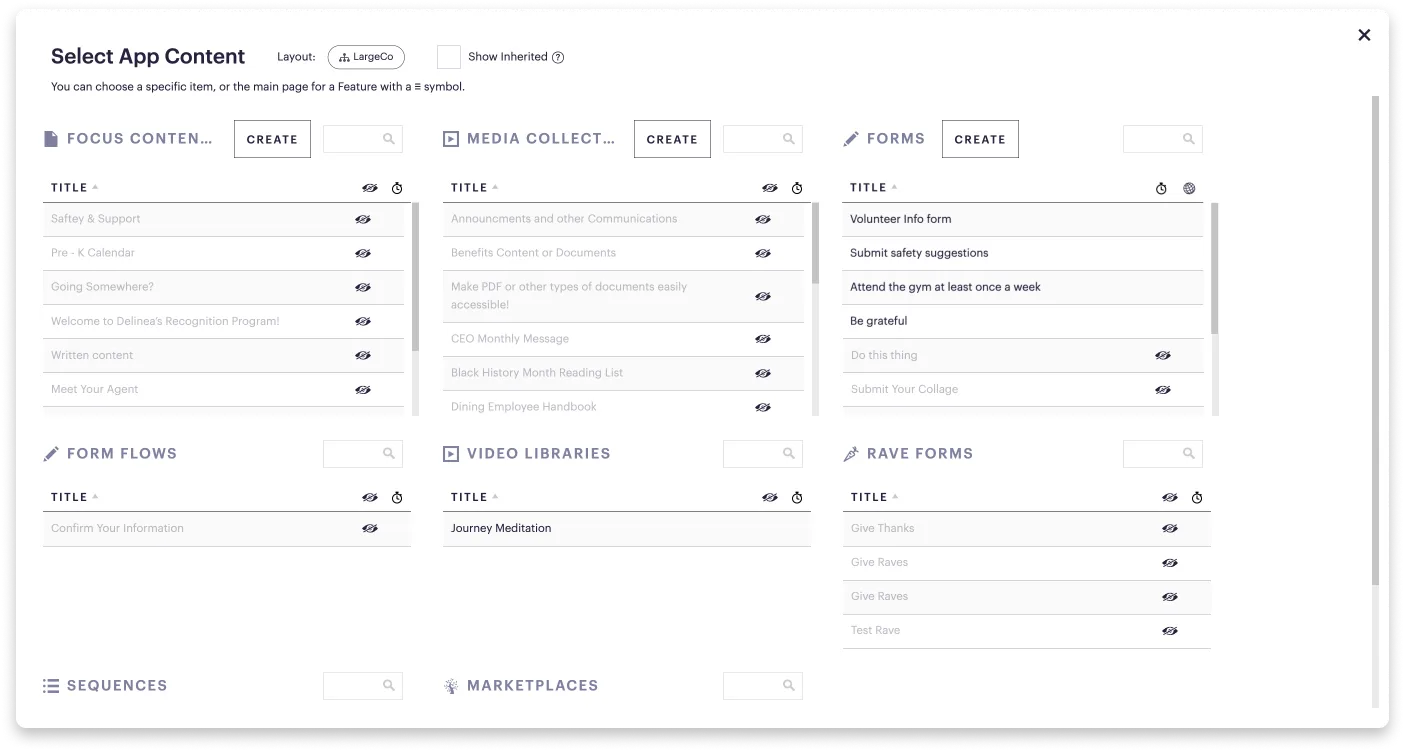
4. Select the content you want.
The content is automatically assigned the display tag and appears in the layout according to its availability and schedule.
Why is my content not showing up in the content chooser or layout?
There could be a few reasons, such as the content is disabled (expired), or may not match your availability. Refer to the symbols in the content chooser for the reason why. For more troubleshooting, see Check content visibility.
Assign a display tag within content
Assign a display tag when you create or edit your content item.
2. In the Menu appearance section, select one or more Display tags.
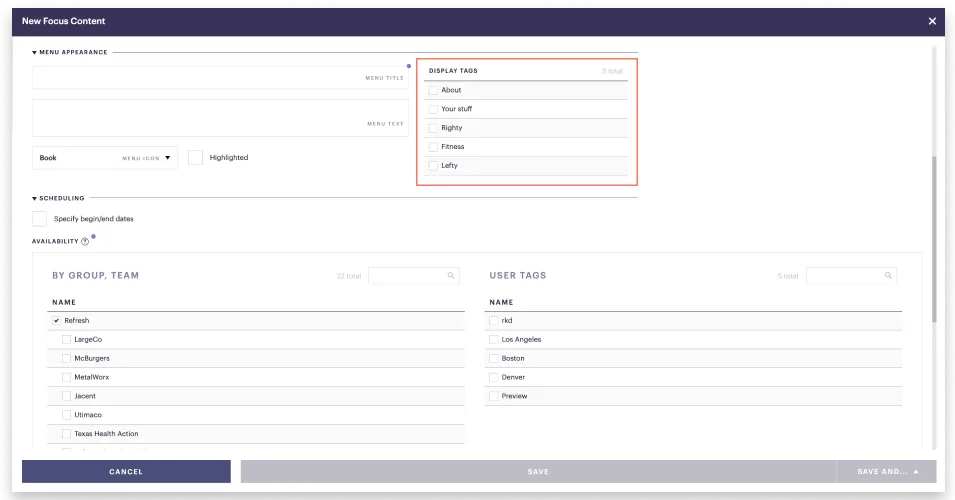
What display tags should I expect to see?
The display tags available to you are based on your admin level, reflecting what you also see in the Admin ➤ Tags ➤ Display menu.
3. Click Save.
Your content will appear in the corresponding section(s), in the sort order you selected.
Edit display tags
Rename or delete display tags that are no longer being used.
To edit a display tag:
1. Go to Admin ➤ Tags ➤ Display.
2. Do one of the following:
- Rename a tag: Select it from the list, and in the dialog confirm the change.
- Delete a tag: Tick each tag(s) in the list, and at the top, select Delete. In the dialog, confirm the change.