Step Tracking Challenges
Who can do this:
- Anyone with editing permissions for Challenges, Homescreen (if selecting availability), and Messages (if sending a message)
Get a Step Challenge going with these simple steps! Encourage users to stay active and potentially offer rewards as incentives.
Create a Step Challenge
Inspire users to stay active with a step tracking.
To do this:
1. Add a new Challenge and select Step Challenge.
- The fields are auto-filled for a daily recurring, 5,000 step challenge.
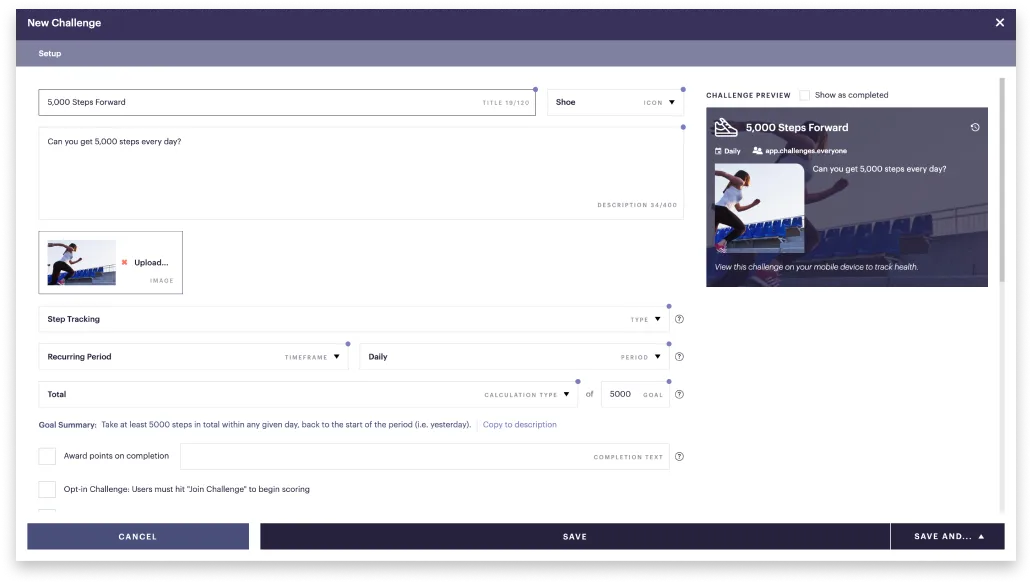
2. Use the setup as-is, or edit it as needed. See Challenge setup fields.
3. Set the Menu appearance and Availability.
4. In the bottom-right, select Save and close or Save and send message.
The challenge is published to the Challenges section of the app, unless you selected hide/show dates.
When does scoring for a recurring challenge start?
Scoring in a recurring challenge starts upon saving, unless it is hidden or disabled. It's recommended to align the start of a recurring challenge with when scoring resets, as follows:
- Start a daily challenge in the morning.
- Start a weekly challenge on Monday.
- Start a monthly challenge on the first day of the month.
- Start a yearly challenge at the beginning of the year.