Navigate your app
Users interact with content in your app through the homescreen.
Access
Users access your app either by downloading it to their device or by visiting it on the web through your organization’s domain, whether that’s a custom address or your Refresh-hosted URL.
- Your Refresh web address follows this format: OrganizationName.refreshplatform.com
How do users get the best experience?
For optimal access to Refresh’s features, it's recommended that users download and use the mobile version of the app.
Quick links
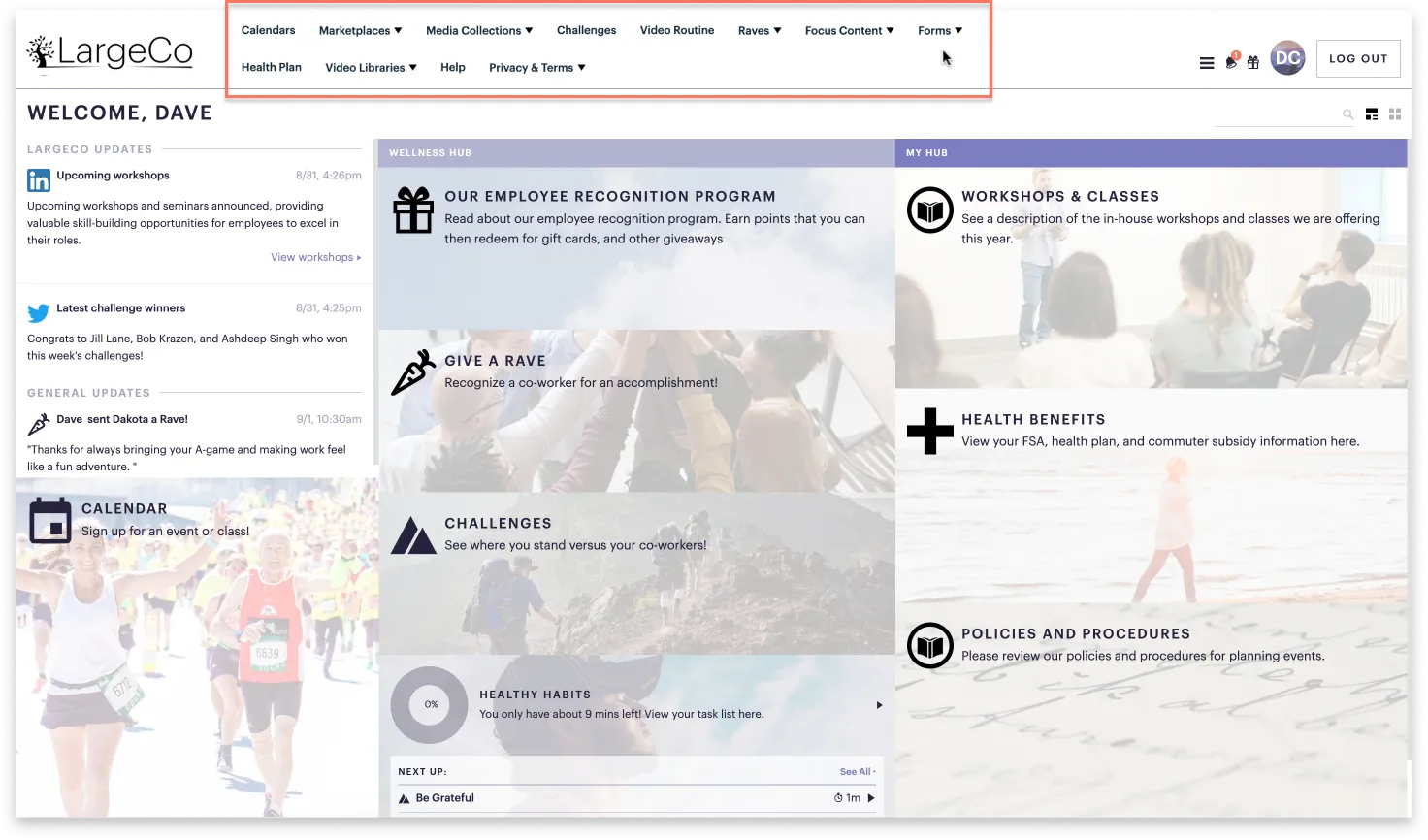
The quick links menu dynamically organizes your content by feature and type for easy navigation. The options available depend on what features were enabled for your organization.
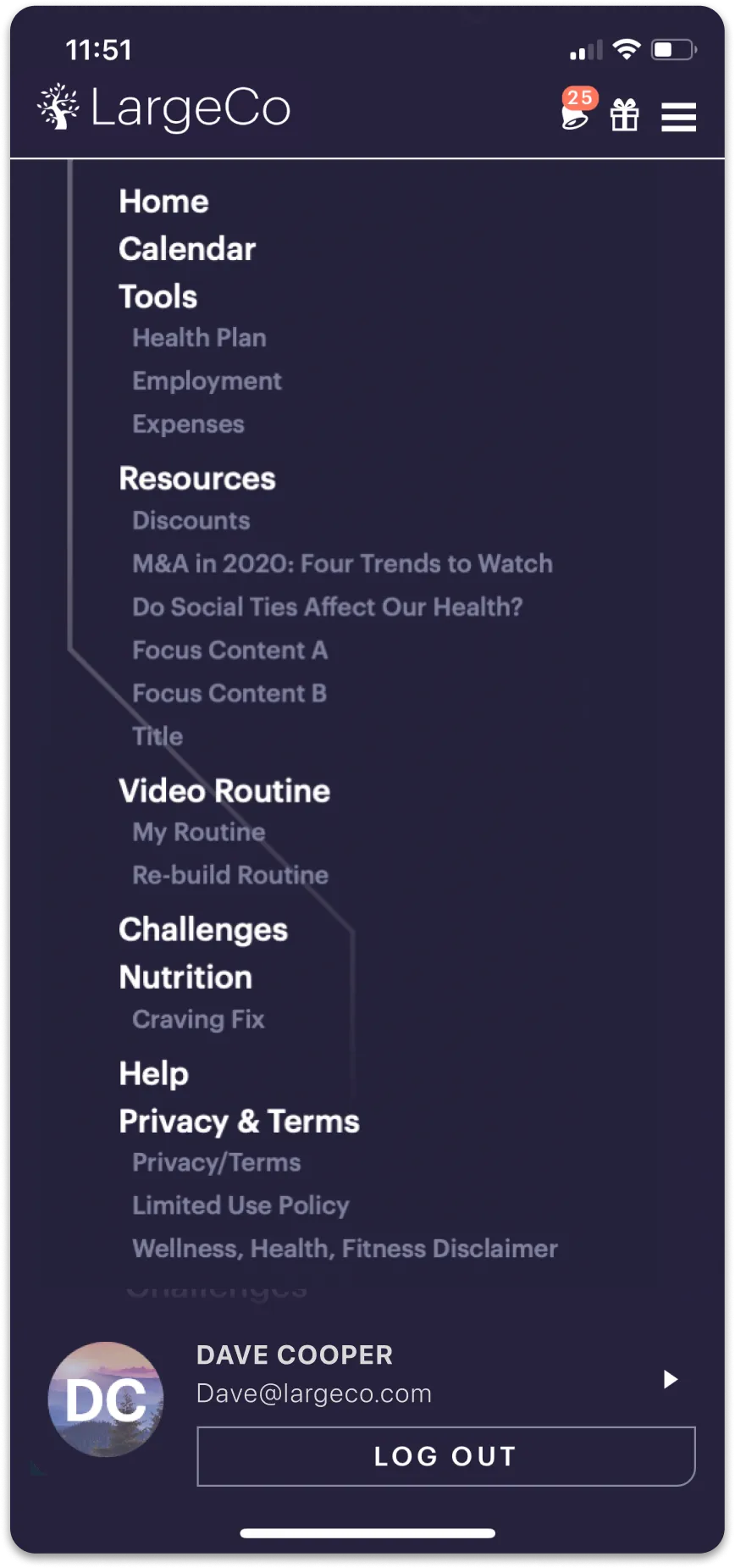
In the mobile view, the menu is accessed by clicking the horizontal lines in the top-right corner.
In the desktop view, the menu appears at the top of the page, next to your logo.
Display settings
When viewing the quick links menu, a toggle allows users to switch between dark and light mode to match their preference.
User profile
Tapping their avatar gives users access to additional option:
- Upload a profile image
- Update name, email address, and phone number
- Select a preferred language (if enabled by your organization)
- Add another user to switch views—for example, between an employee and public view
Notifications
Notification icons are displayed at the top of the homescreen.
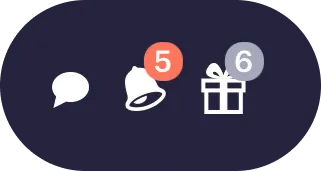
- Dialogue icon: Indicates if you have messages in your inbox.
- Bell icon: Indicates if you have unread notices in your newsfeed.
- Rewards icon: Indicates that gifts are available for you to redeem.
Additionally, when users have unread messages, the app displays a radar-style animation around the bell icon. This animation also appears on any status icon with a red counter circle whenever the number changes. For example, on the Notices icon or the Rewards icon (when new rewards become available).
News & Notices
The News & Notices section is accessed by clicking the bell icon, at the top of the homescreen. It consists of two parts:
Inbox: This top section displays personal messages. A notice appears in the inbox when users:
- Receive a message
- Receive recognition
- Complete a challenge
- Redeem a reward.
Users can remove items by clicking the “X” next to each message.
General updates: This is the second section, which lists:
- News & Notices you've shared with users.
- Automated notifications, such as when others redeem rewards and send kudos (if made public).
You can manage what appears by enabling and disabling items in the dashboard.
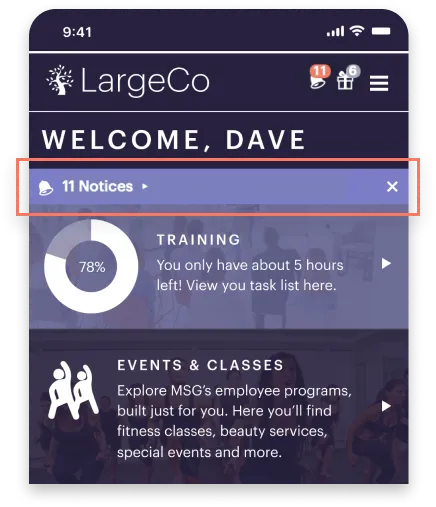
If a user has unread notices, a Notices bar appears at the top of the homescreen, below the Welcome header. Once all of the notices are viewed, this bar disappears.
How do I post a News item?
Get the steps at Add News & Notices.
App layout
What content your users see and how they interact with it depends on how the layout is designed. For instance, sections with headings can be collapsed or expanded.
The layout consists of various sections that contain content, features, and menu blocks, giving you full control over how everything is organized on the homescreen.
For a deeper look, refer to Layout structure.