Feature an Event
Who can do this:
- Anyone with editing permissions for Events and the Homescreen
Feature your event on the homescreen to link users straight to the event itself, rather than the full calendar view.
After viewing the event, users can simply close it to return to the full event calendar.
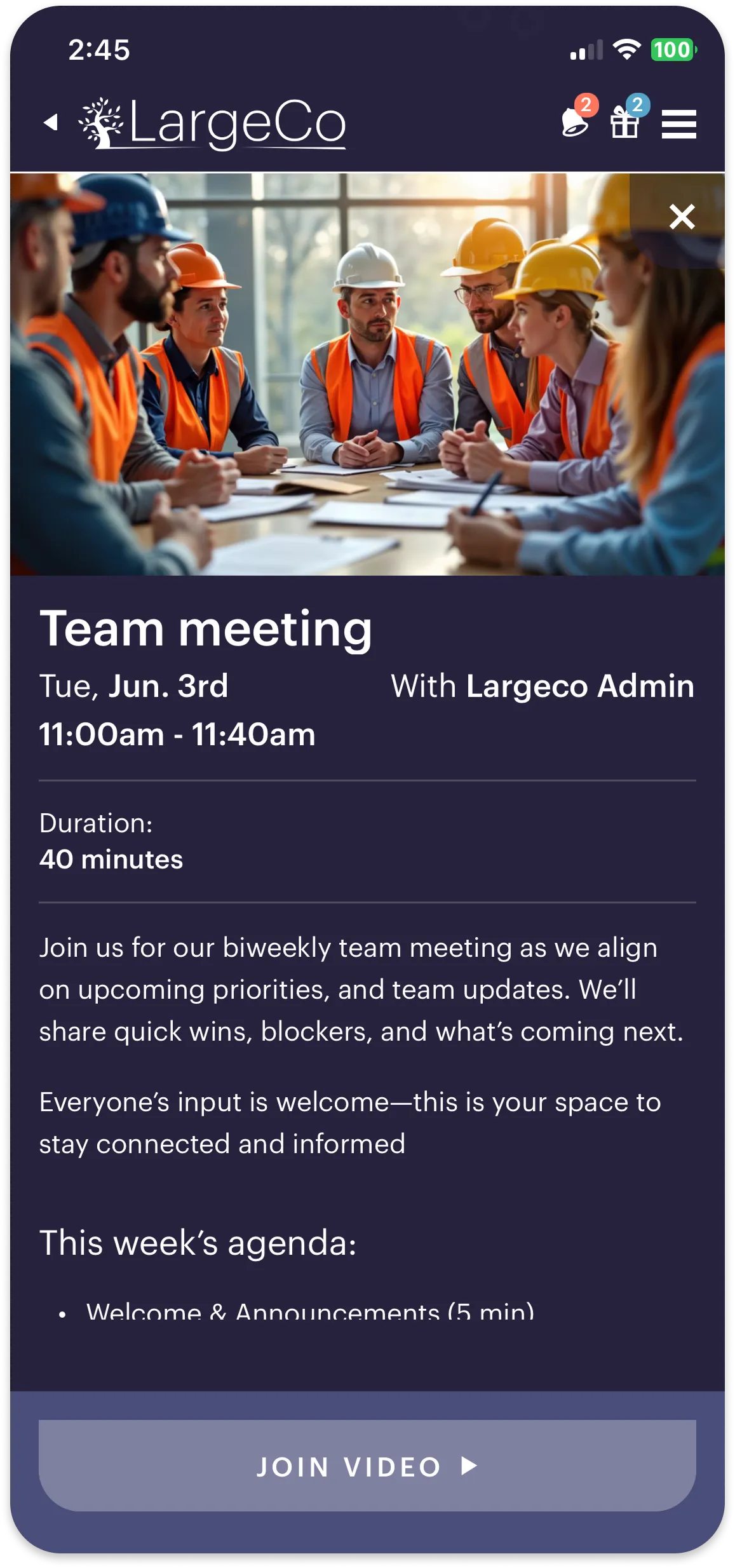
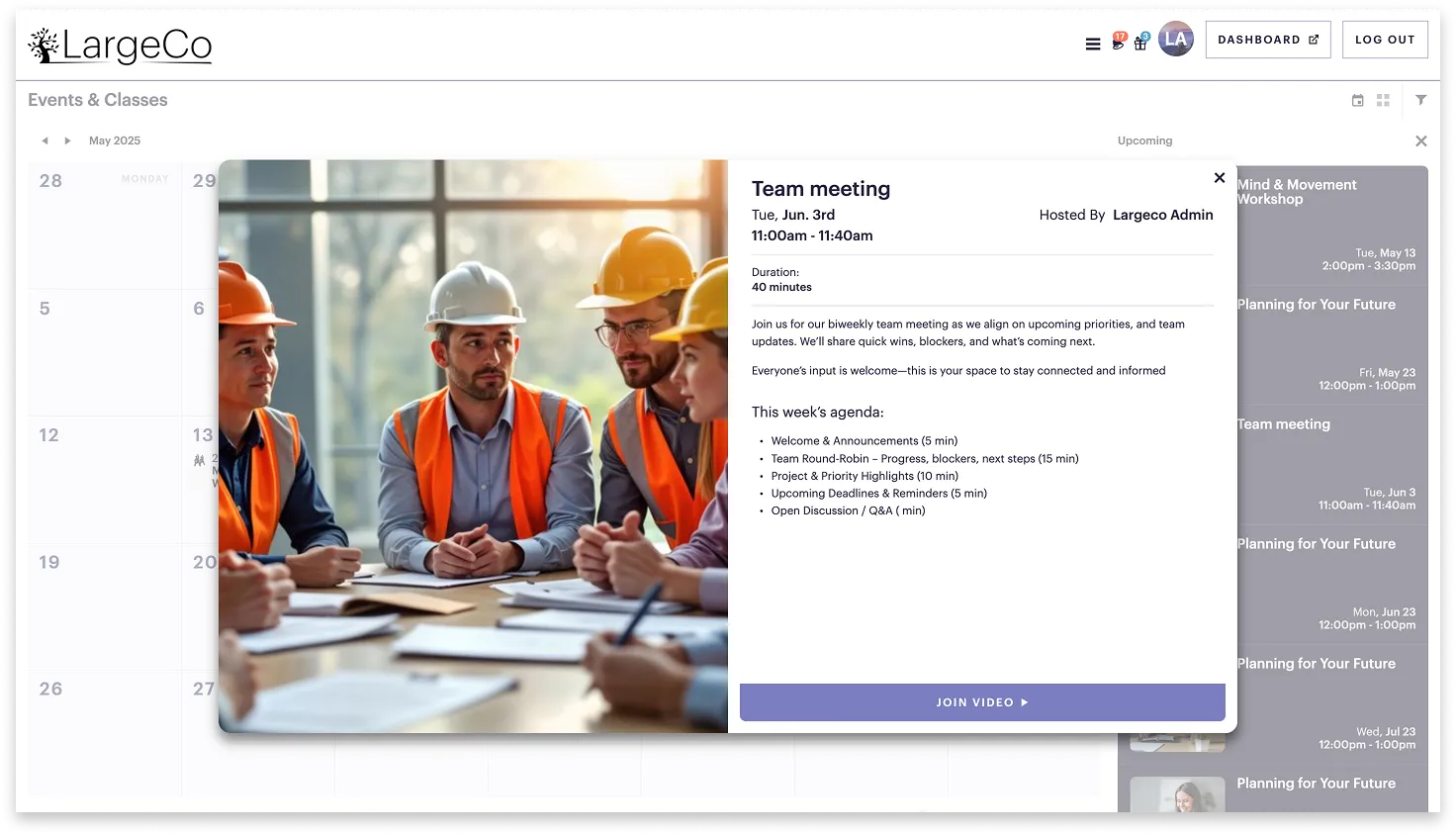
Below are a couple of ways to feature your event on the homescreen.
From the Events setup
Assign a display tag directly from the Events setup.
To do this:
1. Go to Events, and select the event from the list.
2. Edit the Menu appearance section to set how the event appears on the homescreen.
3. Choose a Display tag and click Save.
From the layout editor
You can also feature your event by adding it as content in the layout editor.
To do this:
1. Open the layout editor.
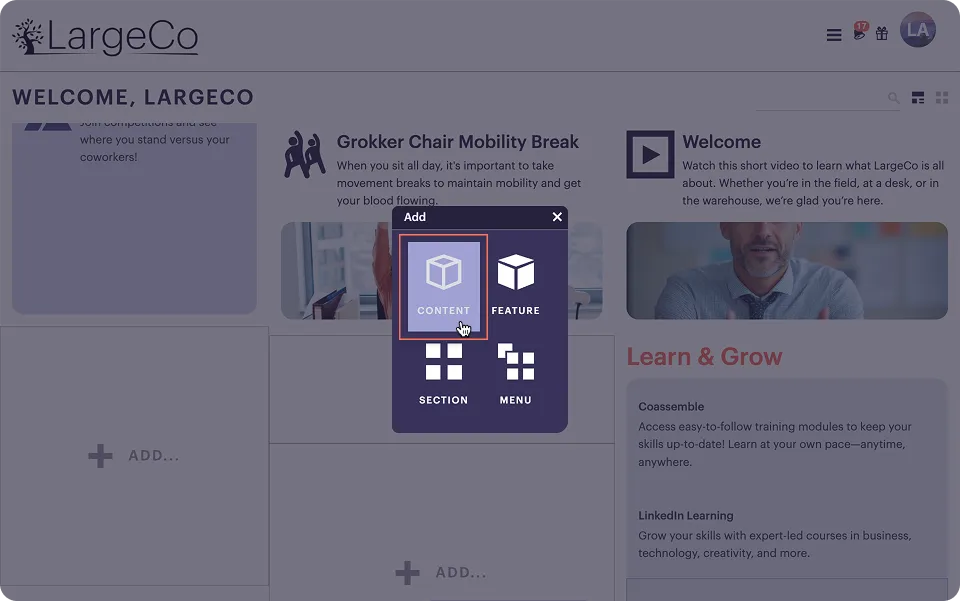
2. Click +Add ➤ Content. For more info, see Place content.
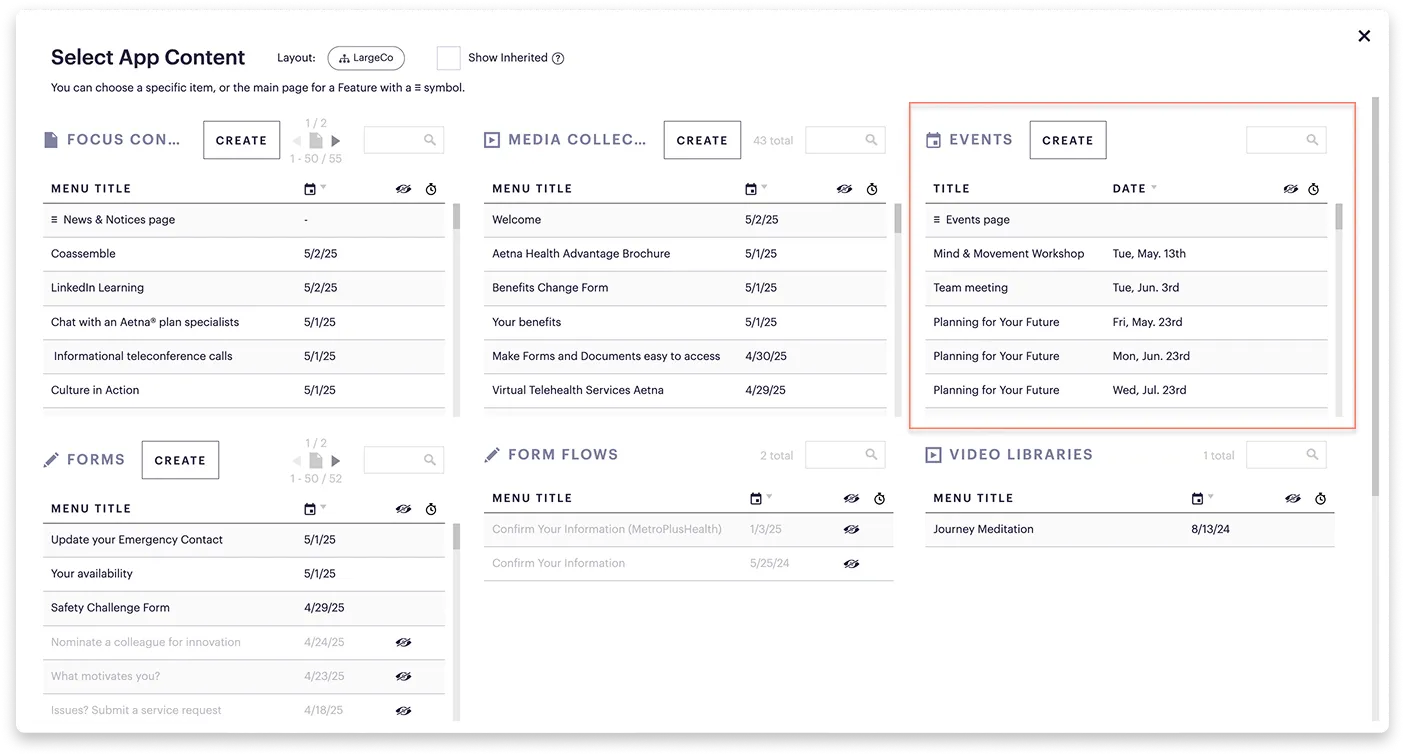
3. Select the Event from the content chooser.
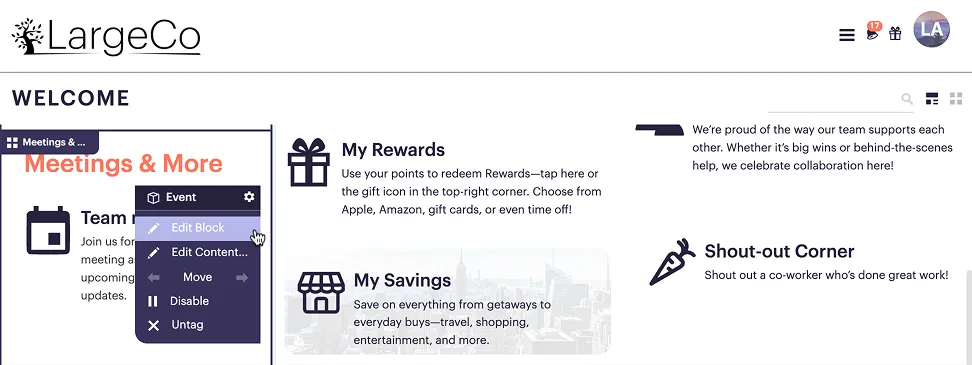
4. In the top-right corner of the added event, click Edit block to customize the menu.
Your event will display on the homescreen according to any hide/show dates you've set.
Why isn't my event visible in the app?
There could be a few reasons, such as the hide/show dates you've selected. Refer to this quick checklist to troubleshoot further.