Add News & Notices
Who can do this:
- Anyone with the editing permission for News & Notices, and Homescreen (if selecting Availability)
- Additional viewing permissions are needed for any content tied to the Focus Content (e.g., Form, Media Collection)
Use News & Notices to share quick updates, warnings, or social media highlights. You can include images and links to make your post more engaging.
These items appear in the second section of the newsfeed, just below the inbox.
Open News & Notices
Add a news piece, or view and edit existing items.
To open the News & Notices page:
- Go to Posts ➤ News & Notices.
Your News & Notices are listed on the page, in addition to any Raves that users have shared to the newsfeed.
Add a News & Notice
Share a brief update that can include images and web links.
To add a news or notice item:
1. Go to Posts ➤ News & Notices and click Add.
- A New item window opens.
2. Select a Content type:
- Regular: No special formatting.
- Warning: Content appears in a yellow text box.
- Tweet: Content appears with the Twitter logo.
- LinkedIn: Content appears with the LinkedIn logo.
In the right panel, a preview shows how your notice will appear.
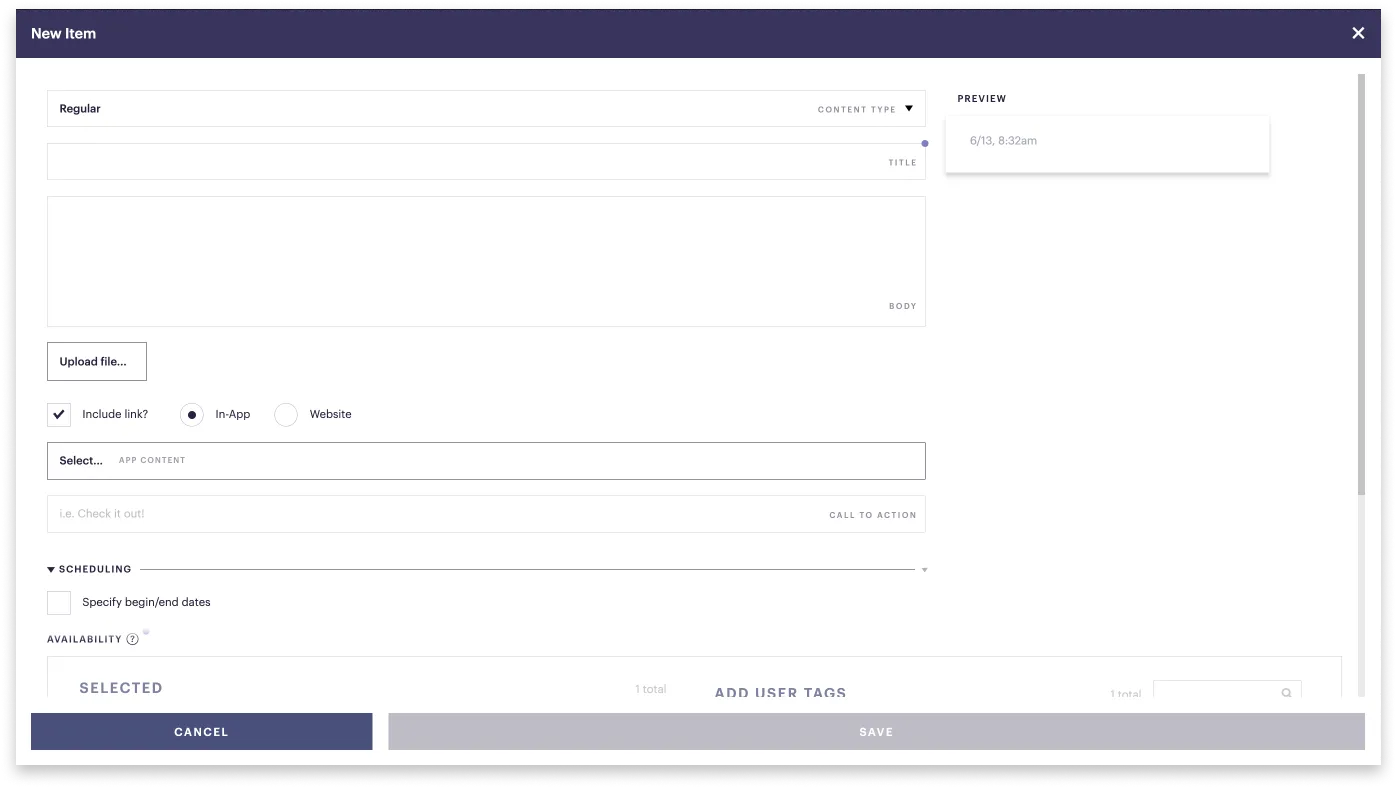
3. Enter your text:
- Title: Stay under 40 characters so your title is fully visible (limit is 200).
- Body: Character limit is 600.
4. (Optional) Select Upload file to upload an image in .jpg or .png format.
5. Complete the remaining options.
Do I have the necessary permission to publish the News item to the app?
Selecting Display tags and Availability requires editing permission for the homescreen. Learn more at Manage admins & roles.
6. Click Save and close.
Your notice is shared according to the timeframe you selected.
How can I increase traffic to my notices?
Use your notice in a viewing Challenge. See Create and App View Challenge.