View & export responses
Who can do this:
- Anyone with Forms (visible) permission
View form responses while it is enabled (open), or after it has been disabled (closed). One response is recorded per user, for a given form.
If resubmissions are allowed will I see more than one response?
If you've allowed resubmissions, the user's latest response is recorded, replacing the previous response. To preserve the original response, create a new form instead.
View responses as a summary or list.
View summary
A summary of responses is viewable when your form has the following calculable fields:
- Picker
- Radio Group
- Date and/or Time Picker
- Checkbox
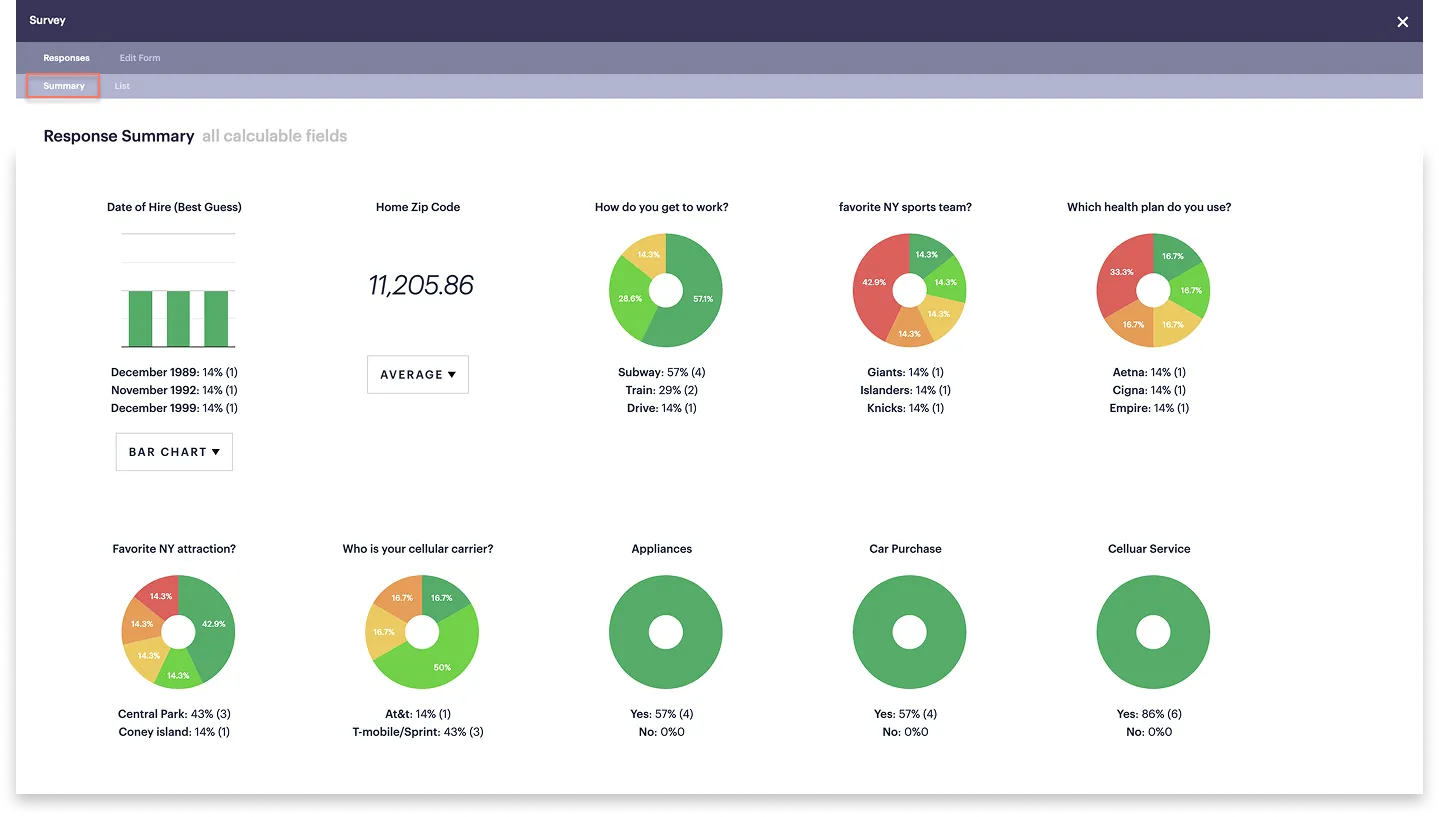
The summary shows how many users selected each option, in various formats, such as the total number, average, pie chart or percentage.
To view a summary:
- Go to Forms ➤ Forms.
- Any forms you've created are displayed in a list.
- From the list, select the form you want.
- Below each chart in the dropdown, select the format (e.g., Total or Average) you want.
How are responses displayed?
The field types and built-in logic affects how responses are displayed and the dropdown options available.
View & export list
View and export responses as a CSV (Common Separated Values) file that can be opened with Excel, Google Workspace, or any other number of spreadsheet products.
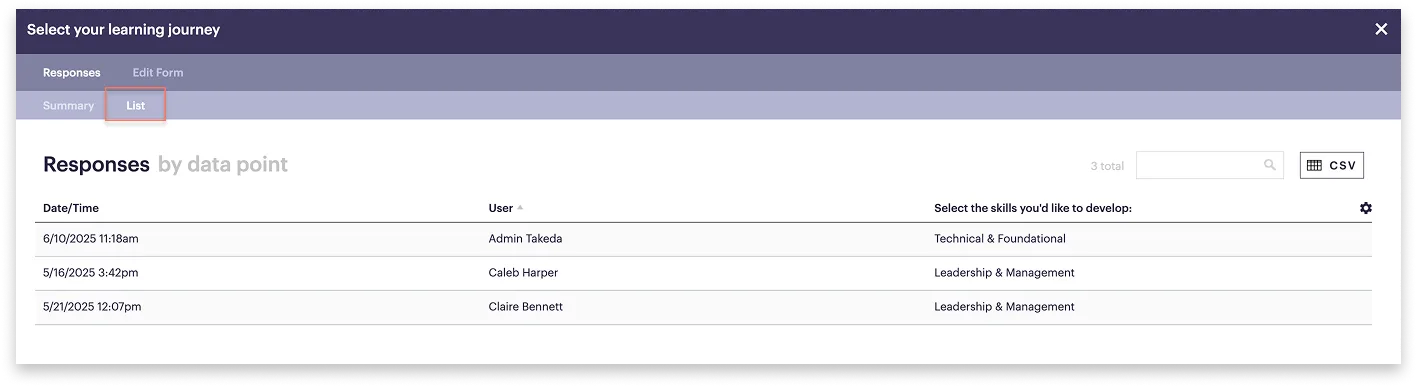
To view and export responses:
- Go to Forms ➤ Forms.
- Any forms you've created are displayed in a list. Tick Show inherited to view forms created above your admin level.
- Select the form you want.
- The Form window opens, with the Responses tab selected by default.
- Select the List tab.
- Use options in the top-right corner to customize your list or export:
- Gear icon: Select or unselect any columns you want to hide from view.
- CSV: Select this to export the list as a spreadsheet.
Any columns you hide from view are not included in your export.
Are images included in your export?
Images are not included in the export, but may be reviewed directly within the dashboard.