Use tools in the editor
Who can do this:
- Anyone with editing permission for the Homescreen and HS Sections, if editing existing sections and creating Display tags
- Additional viewing permissions are needed for any content you want to place in the layout
The layout editor gives you the tools to edit or create layouts, as outlined below.
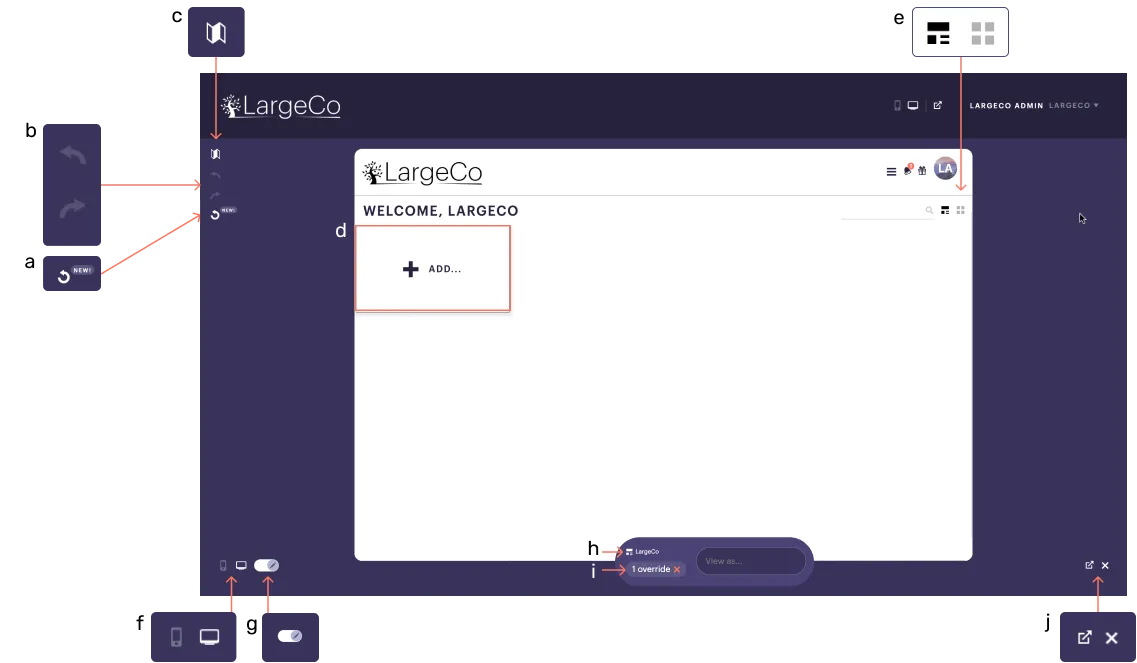
a. Layout history: Click to view past revisions and revert if needed. Content changes (e.g., tagging, untagging, and block edits) are not recorded.
b. Undo/redo: Use the back arrow to undo or the forward arrow to redo an action that changes the layout. This does not apply to Content blocks.
c. Map: Select this to view the layout's structure, which appears in the left pane. You can navigate to a section or block within the layout by clicking on it in the Map.
d. Add: Select this to add a Section, Feature block, or Menu block. The option to add a Content block appears once a section has been added, with the Include content option enabled.
e. Grid: Select a grid template to use for a new or existing layout.
f. Mobile/desktop: Select the mobile or desktop icon to see that version of the layout. For more on this, see Mobile vs desktop layout.
g. Display switch: Toggle this on to view the ready-only, published view.
h. Group & user info: This displays the name of the Group layout you're viewing and who you're viewing it as. You can:
- Enter a different user or Group name, to view it as someone else.
- Click the Group name to open the Structure page and change layouts.
i. Overrides: This shows the number of sets you have selected. To view the layout without variations, click the x to reset the layout.
j. Open full view/close: Select the arrow to open the homescreen in a new tab in your browser, in full desktop view. Select x to close the editor.