Style blocks within a section
2 min
Who can do this:
- Anyone with editing permissions for the Homescreen and HS sections
Apply a consistent look across all blocks within a section by adjusting the style settings.
To style blocks:
2. Select the Style tab.
3. Under Blocks within section, set the following:
- Title Color: Choose a color for both Dark and Light mode.
- Title font size: Select from Inherit, Regular, Large, XL, and Lowercase.
- Text Color: Set the body text color for both Dark and Light mode.
- Gradient background: Add a fade effect across all blocks in the section
- Rounded image corners: Apply rounded corners to block images.
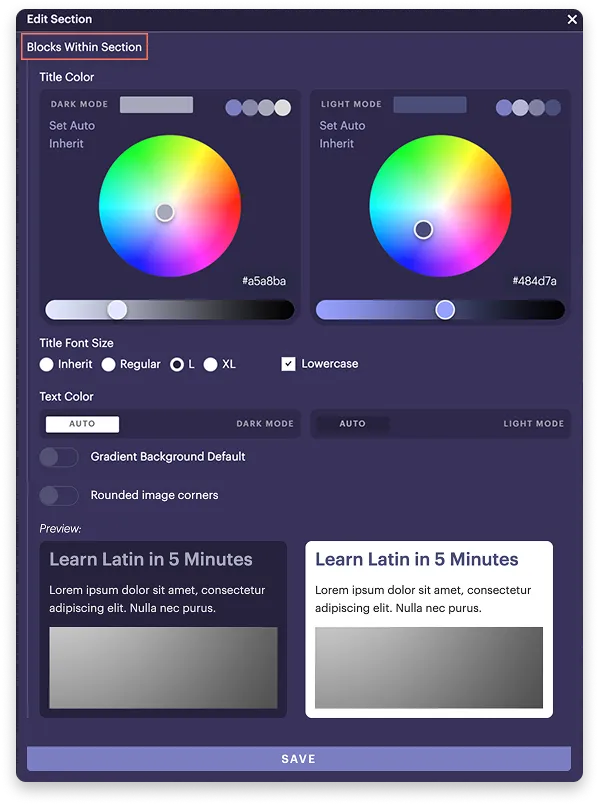
How do I set a color?
Click the color picker to select a shade, or paste a hex code into the bottom-right field. In Light mode, the section appears on a white background. In Dark mode, it appear on a dark background, defined by your color scheme.
4. Under Preview make sure everything looks right.
5. Click Save.
The changes are applied immediately.