Send & schedule messages
Who can do this:
- Anyone with the Message (editable) and Users (visible) permissions
- Additional viewing permissions are needed for any app content tied to the message (e.g. Focus Content, News & Notices)
Send a message immediately, or schedule it for later. Use it promote content, request info, or encourage participation in a challenge.
How often should I send messages?
Blasting frequent messages may lead employees to tune them out or even turn off their notifications. For this reason, it's recommended to send messages sparingly.
Start a message
Here are four ways to start a message:
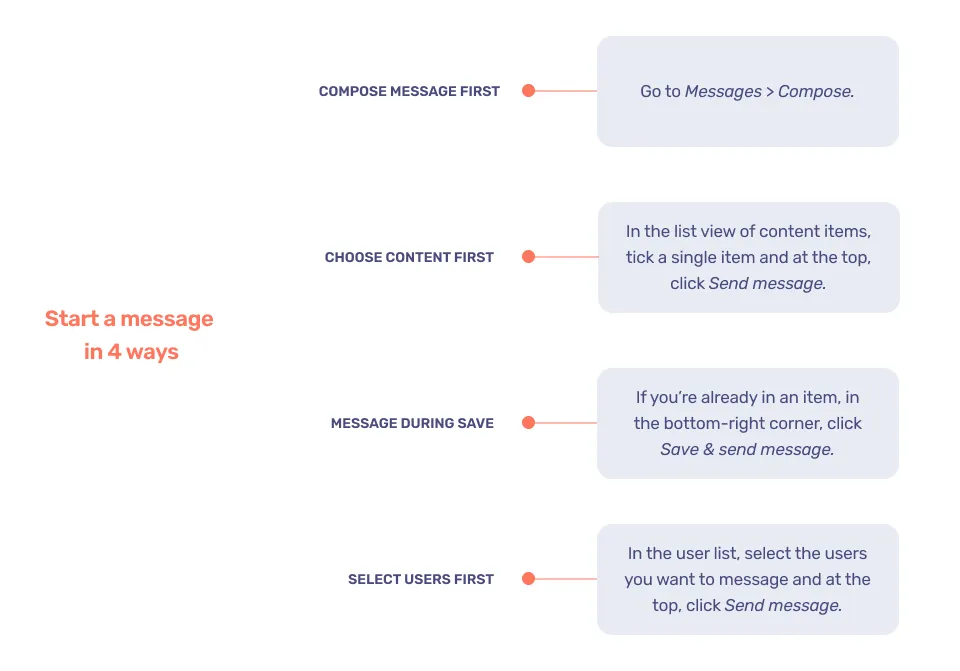
All of the above bring you to the Compose page where you can prepare your message.
Prepare your message
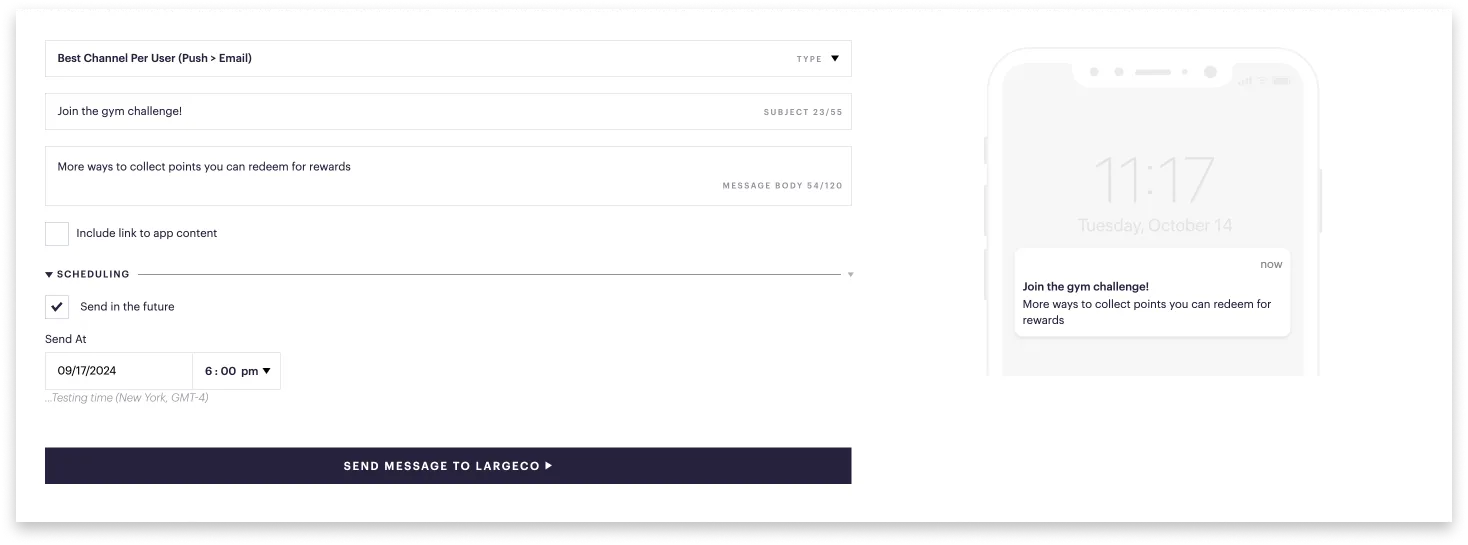
On the Compose page, prepare your message:
- In the Type field, select one:
- Best channel per user: Searches for the best channel for each user, whether push notification, text, or email, and sends it that way.
- Push notification (mobile app message): Sends an alert to their mobile device, through the app, which only works if users have downloaded the app and enabled notifications.
- Text message (SMS): Sends a text to their mobile phone number, which only works if users have provided their phone number.
- Email: Sends a message to their email address, which they were required to provide when registering for the app.
- Enter the message details:
- Subject: Keep this under 55 characters. Push notifications don't require a subject and texts do not have a subject.
- Message body: Keep this under 120 characters, for a push notification or text. An email can be whatever length you choose, and includes options for customizing the layout and content.
- Include link to app content: Select this if you want to direct users to a specific Challenge, Form, Media Collection, Event, or other item.
A preview of your message appears in the right panel.
Continue below to complete the remaining setup.
Schedule (optional)
Tick Send in the future to select a time and date.
Select recipients
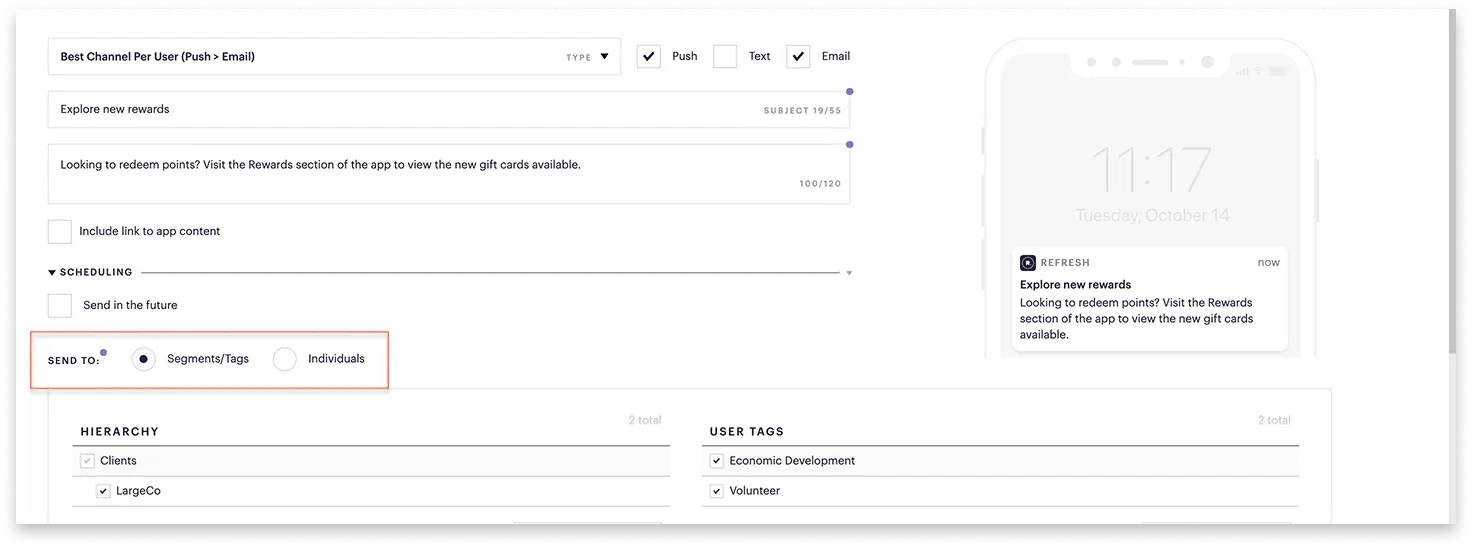
At the bottom of the Compose page, in the Send to section, choose from two options:
- Keep Segments/Tags selected to send a message to everyone or to specific Groups, Teams, or Tags. (Your organization may have set up different labels for these).
- Select Individuals to choose specific users.
Send message
Once you've finalized the details, send your message:
- At the bottom, click Send message.
- In the dialog, if you're sure, click Send.
Your message is sent either immediately or at the future date and time you selected.
Can I view or edit scheduled messages?
Yes! To view your scheduled messages, go to Messages ➤ Scheduled. To edit a message, simply click the pen icon in the far-right column.