Open & use the layout editor
3 min
Who can do this:
- Anyone with editing permission for the Homescreen and HS Sections, if editing existing sections and creating Display tags
- Additional viewing permissions are needed for any content you want to place in the layout
The layout editor (also called the app preview) is the interface where you can design the structure of the homescreen and select what content and features are included, and where.
Open the layout editor
If you have a single layout:
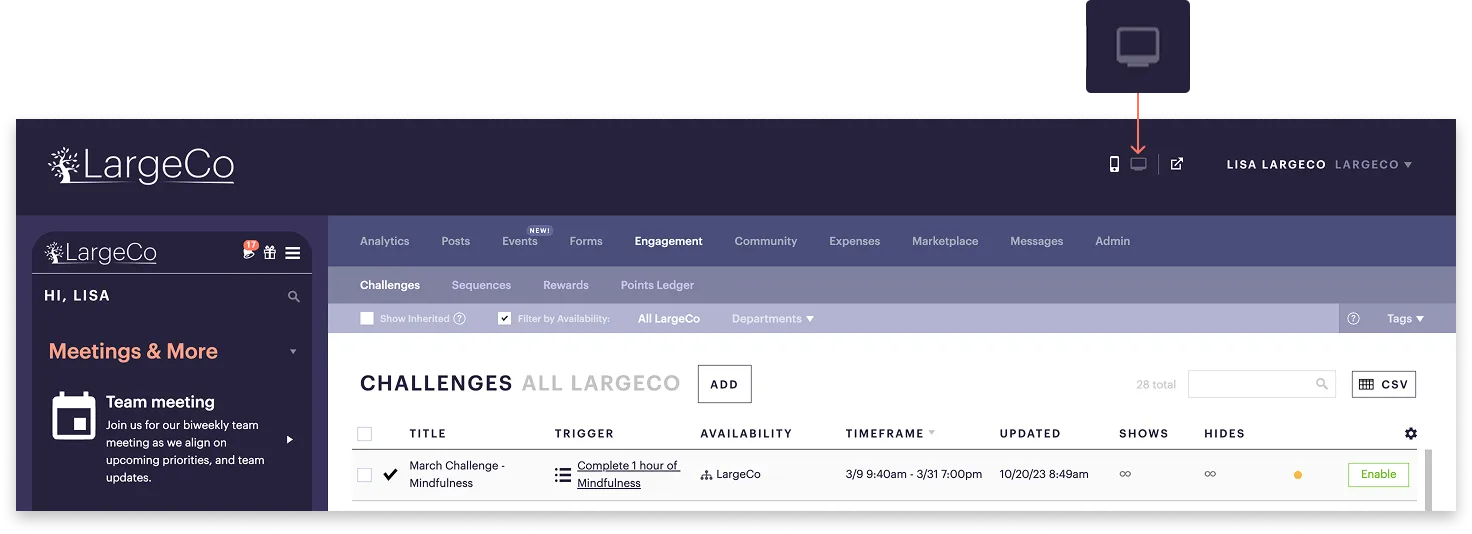
- In the top-right corner of the dashboard, select the Desktop icon.
If you have multiple layouts:
- Go to Admin ➤ Structure & Settings.
- Under Groups, select the Group of the layout you're editing.
- If a Team, select the Group first, then the Team. Your organization may have other labels for these.
- On the page, under Settings, select Edit layout.
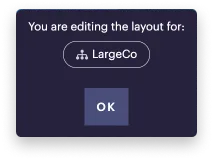
- This loads the layout and a dialog appears notifying you which layout you're editing.
In the dialog, click Ok.
- In the top-right corner of the dashboard, select the Desktop icon.
This opens the web version of your layout for the Group or Team you selected.
From here, you can use the layout editor to design the layout you want: