Navigate with map & menus
Who can do this:
- Anyone with editing permission for the Homescreen and HS Sections, if editing existing sections and creating Display tags
- Additional viewing permissions are needed for any content you want to place in the layout
The map, menus, and tabs help you quickly navigate your layout and manage its structure—making it easier to locate, edit, and organize content as you build.
Map
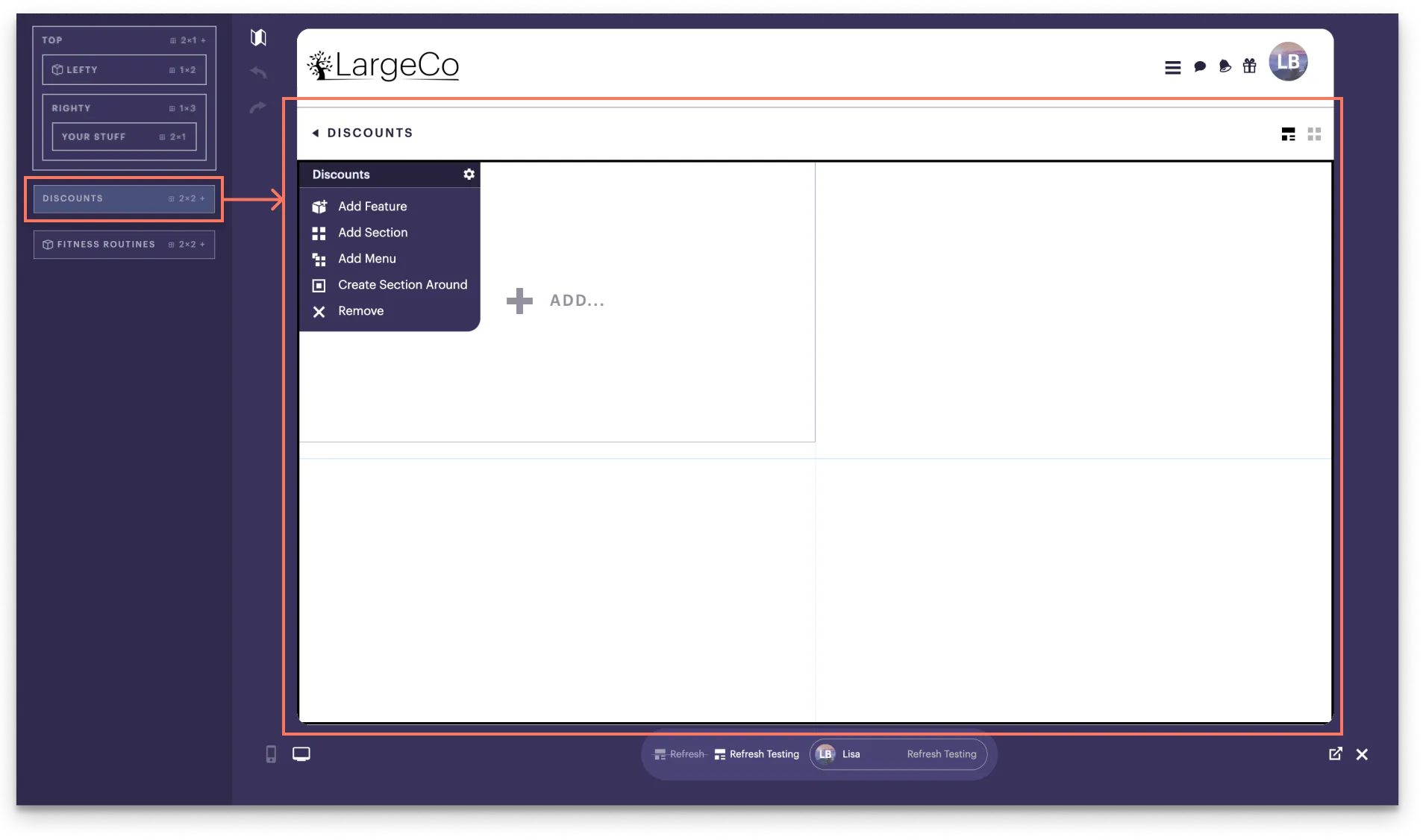
When you select the Map icon, the map appears in the left pane of the editor, automatically showing the layout structure. Click on a section or block in the map to navigate to it.
In the example below, selecting Discounts in the map, opens the menu (in this case, within a sub-layout).
Menus
Each section or block has a small menu that appears when hovering your mouse over the top-left corner (for sections) or top-right corner (for blocks). You can also access these menus through the Map.
Select a tab below to see the locations for each.
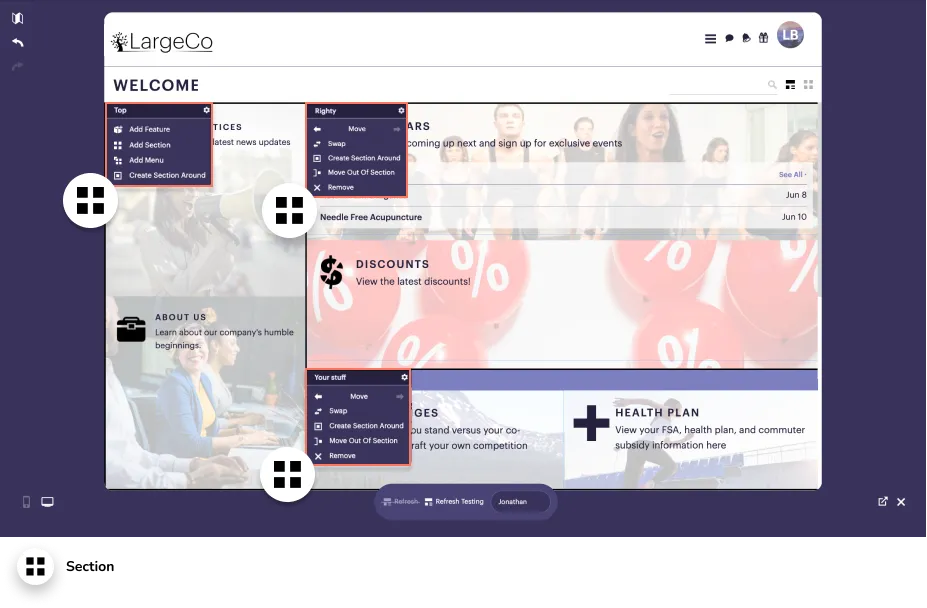
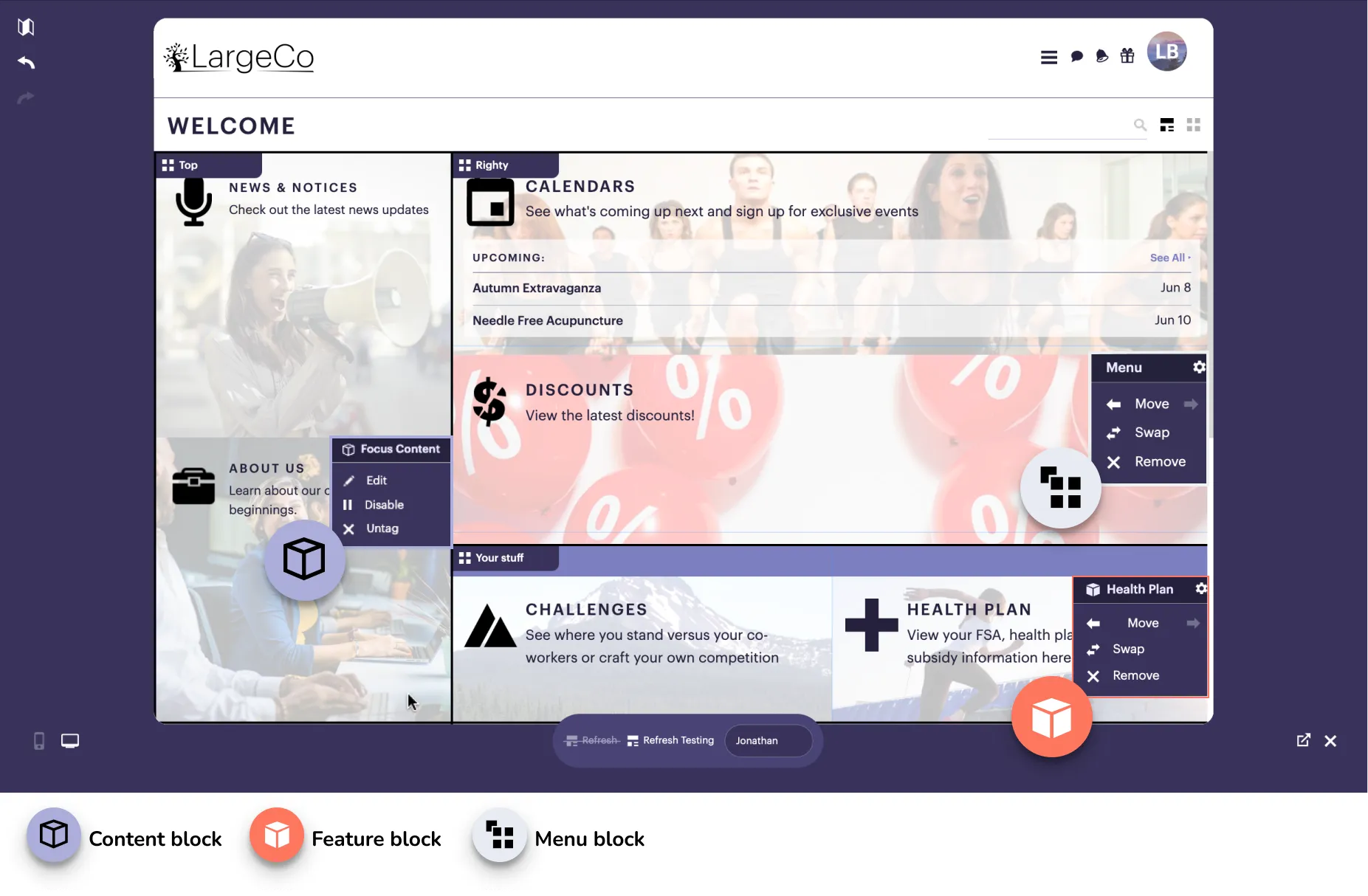
Sections and blocks have the following menu options:
- Gear icon: Opens the settings for the section or block, where you can make changes.
- Move: Moves the item left or right.
- Swap: This lets you switch the positions of two items.
- Remove: Deletes the item from the layout.
- Edit: Removes the display tag so the content no longer appears in the layout.
- Untag: This removes the display tag from the content item, so it doesn't appear in the layout.
- Disable: Expires the content, so it is removed from the layout. It is no longer an option to include in the layout until it is re-enabled.
Sections have a few other options that blocks don't have, including:
- Create another section around it
- Move it out of the section
- Add a content, feature, menu, or section
Set tabs
If you've added sets to a section, tabs for each will appear along the lower edge of the section, as shown below.
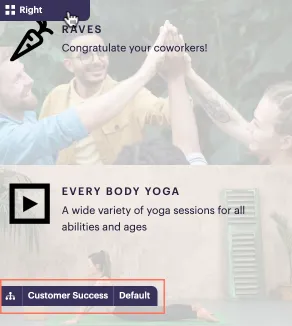
Click a tab to see the version of the section for that set and edit the blocks as needed. For more details, refer to Vary sections by user assignment.