Images & links
In addition to the common sections, Focus Content and News & Notices have the options to add images and links.
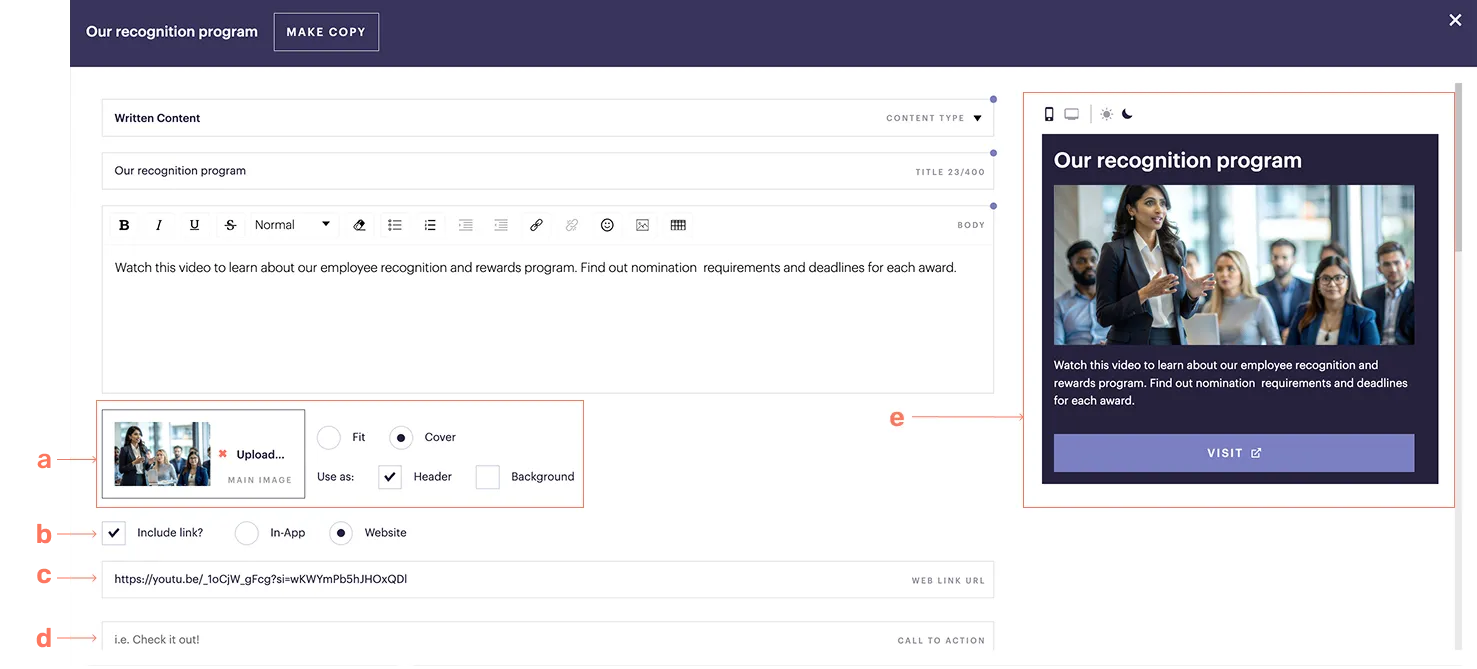
(a) Upload image
Use a high-resolution image in JPG or PNG format. You can then choose how the image is displayed:
Fit or Cover: Select Fit if you want ensure your entire image is visible, or if it contains text.
Header and/or Background: A header image appears under the title, while a background image appears behind the text body. These options do not apply to News & Notices.
Why does my image look cut off in the menu?
Menu images work best in landscape format (ideally 16:9 or 4:3). Vertical images may be cropped on mobile, so for full display, use them inside a Media Collection or Focus Content instead.
(b) Include link?
Choose this to link to other content within your app, or to an external website.
In-App: Select this to link to other content within your app. In the content chooser, you can select specific content or a page, indicated by three horizontal lines.
(c) Web link URL
If you selected Website enter the URL.
(d) Call to action
Enter the text you want displayed for the link you selected (e.g., Learn more).
(e) App preview
On the right, the App preview shows how your image will appear.
How do I link to app content within the text body of Focus Content?
On the desktop app, open the item you want to link to and copy everything in its URL after com (including the slash). Then, in the toolbar, click the link icon and paste that path.