Assign/re-assign users
Who can do this:
- Anyone with the Users (editable) permission
Once your hierarchy (groups/teams) and user tags are set up, you can assign users to them whenever needed.
A user can be assigned to only one group or team at a given time, but can have multiple user tags.
Is it okay if I change a user's assignment?
Changing a user's group, team, or tag can impact content visibility. Ensure the new assignment aligns with the content you intend for them.
Assign or re-assign a single user
Assign or re-assign a user to a group or user tag, one at a time. This allows you to retain their existing assignment.
If a user hasn't been added to the dashboard yet, you can select their assignment when you add them. See Add & invite a single user.
To do this:
- Go to Admin ➤ Users.
- Select the user from the list.
- Under Assignment, select the Group, Team, and/or User tags you want.
- Click Save.
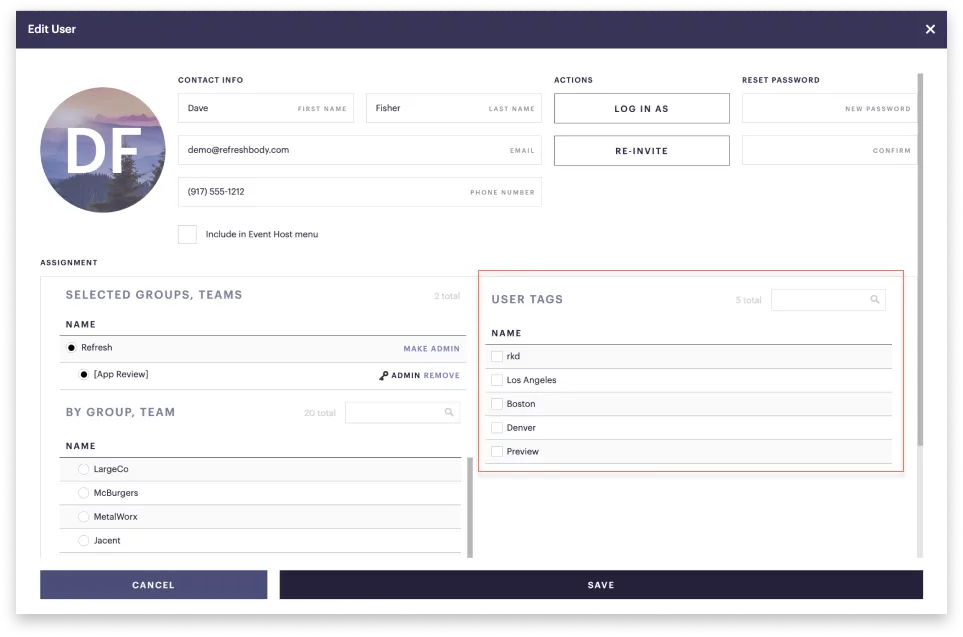
What if I select both tags and groups?
User tags serve as an alternative to groups rather than as a filter within a group. Learn more about the differences at User segmentation.
Assign or re-assign multiple users
When assigning or re-assigning multiple users at once, users will inherit the existing assignment of other users. To avoid this, assign a user individually.
To assign or re-assign multiple users:
- Go to Admin ➤ Users and tick the users you want.
- At the top, click Re-Assign.
- This opens the Re-Assign items window.
- Select the assignment you want, whether Group, Team, or User tag.
- Click Re-Assign.
- In the dialog, click Re-Assign to confirm.
All the users you selected will now be-reassigned.
How can I let users update their own tags?
Create a form that allows users to select their own tags. These tags will automatically apply to their profiles. For more details, see User self-tagging.